
How to Change Display Name and Profile Picture in WhatsApp Business API

This guide walks you through updating your WhatsApp Business display name and profile picture directly through the Meta WhatsApp Manager, accessed via the Updatrr app on Shopify.
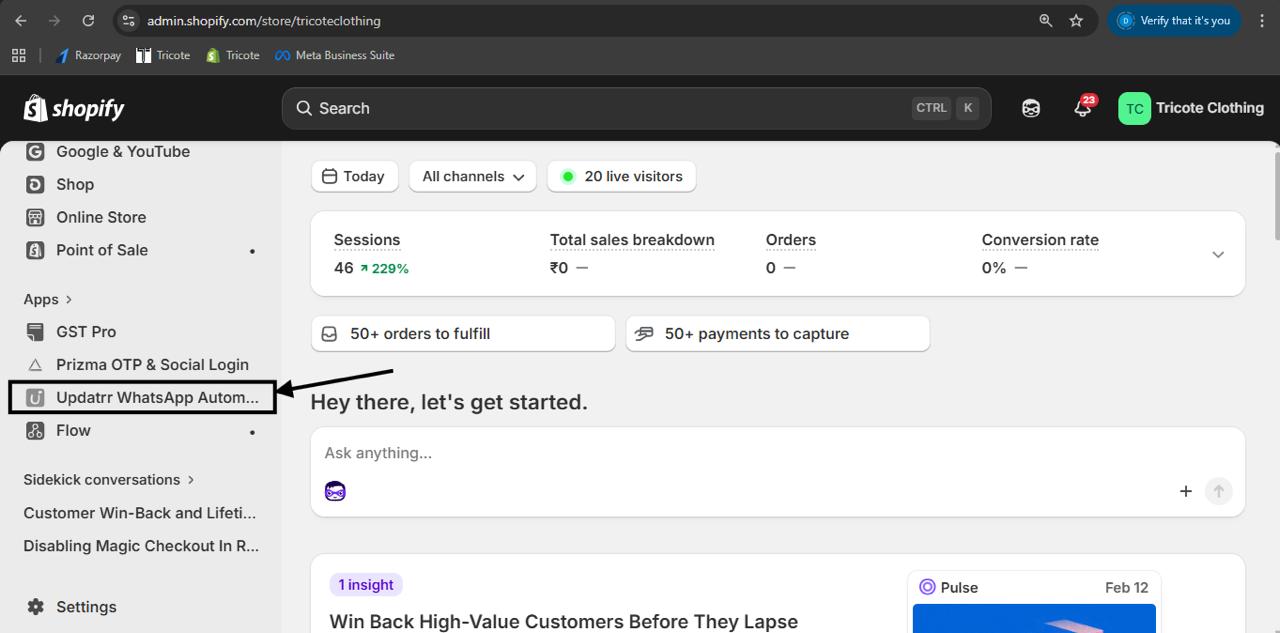
Step 1: Open the Updatrr App in Shopify
Log in to your Shopify Admin Panel. In the left sidebar, scroll down to the Apps section and click on Updatrr WhatsApp Automation.
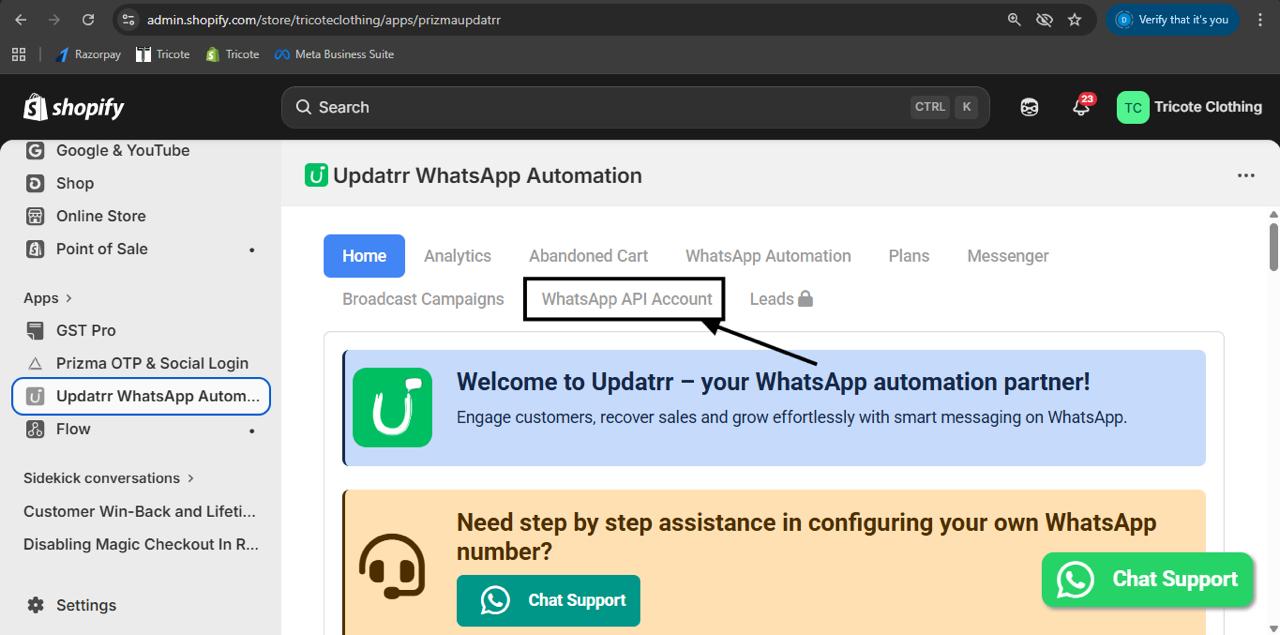
Step 2: Go to the WhatsApp API Account Tab
Once the Updatrr app opens, you will see a navigation bar at the top with multiple tabs such as Home, Analytics, Abandoned Cart, WhatsApp Automation, Plans, Messenger, and Broadcast Campaigns. Click on the WhatsApp API Account tab
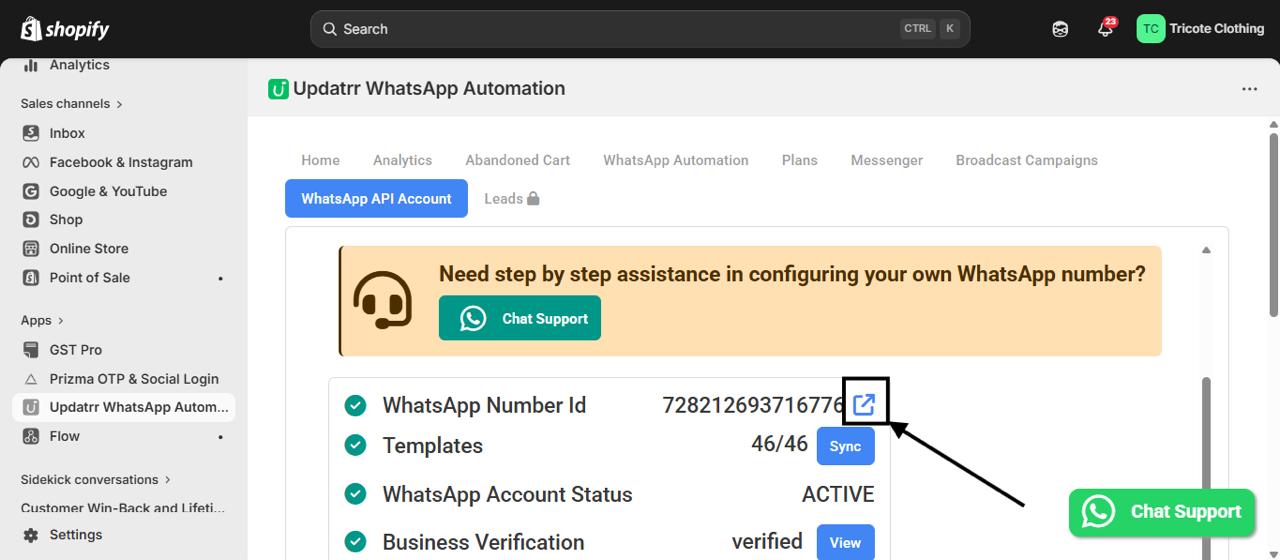
Step 3: Open the WhatsApp Manager
IOn the WhatsApp API Account page, you will see your account details including your WhatsApp Number ID, Templates, WhatsApp Account Status, and Business Verification. Next to the WhatsApp Number ID, click the external link icon (the small arrow/box icon). This will open the Meta WhatsApp Manager in a new tab.
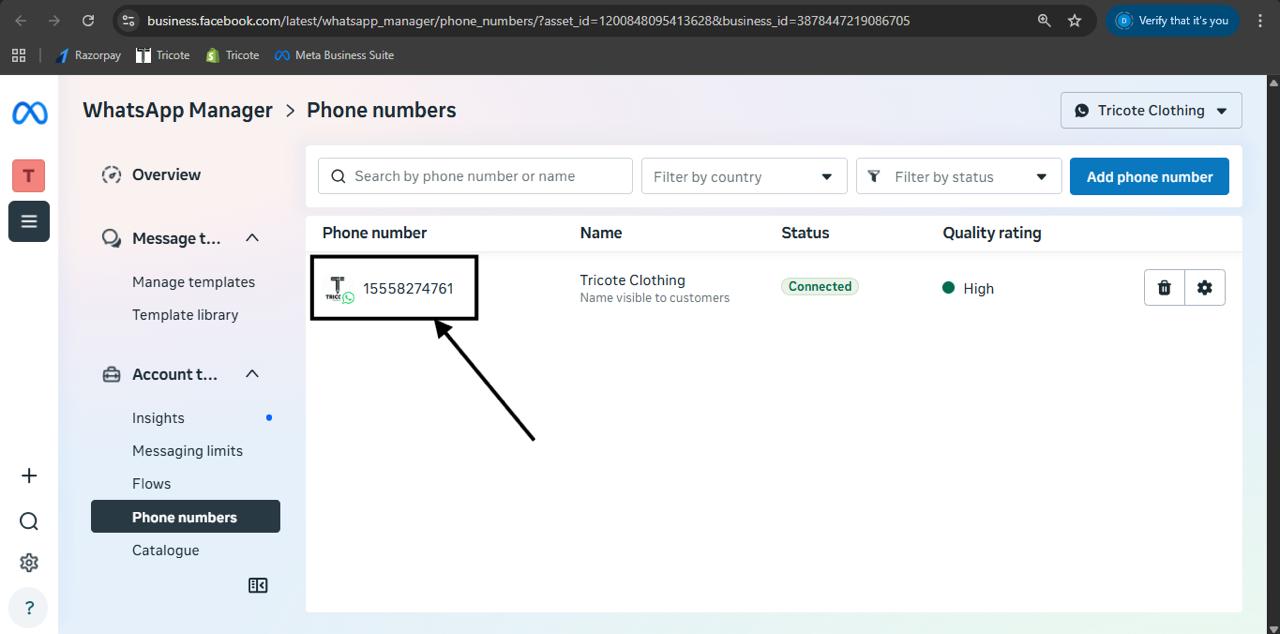
Step 4: Select Your Phone Number
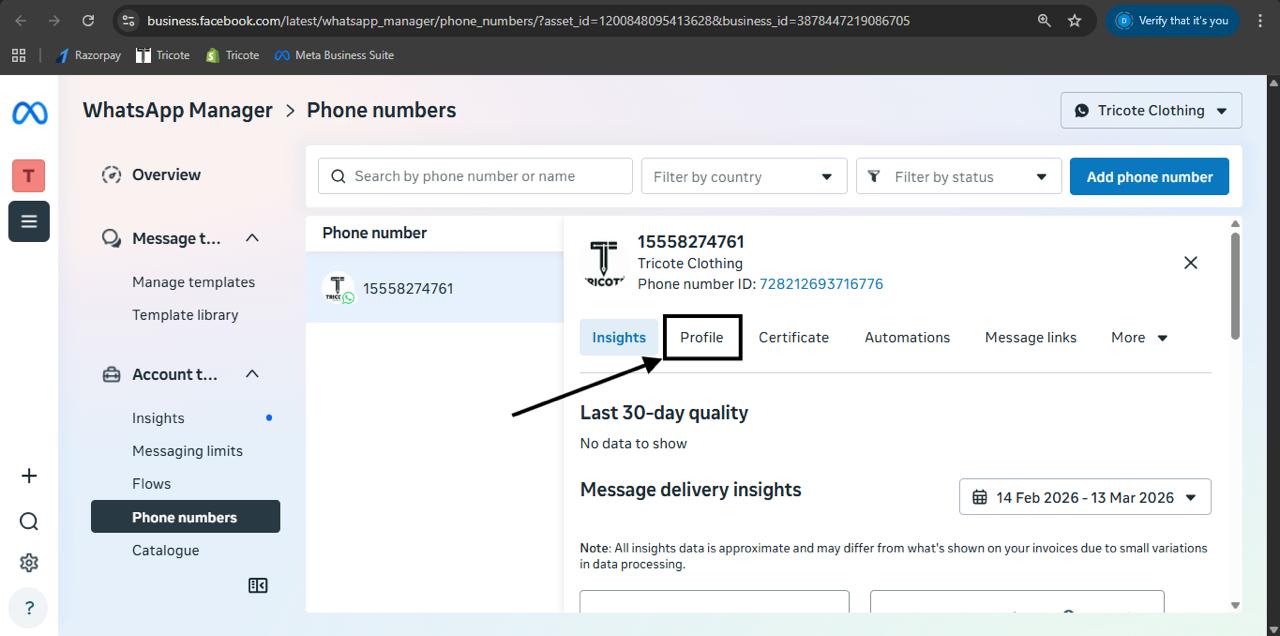
Inside the Meta WhatsApp Manager, navigate to Phone Numbers from the left sidebar under Account Tools. You will see a list of your connected phone numbers. Click on your phone number from the list to open its details panel on the right side of the screen.
Step 5: Open the Profile Tab
In the details panel that appears on the right, you will see several tabs — Insights, Profile, Certificate, Automations, Message links, and More. Click on the Profile tab.
Step 6: Update Your Profile Picture
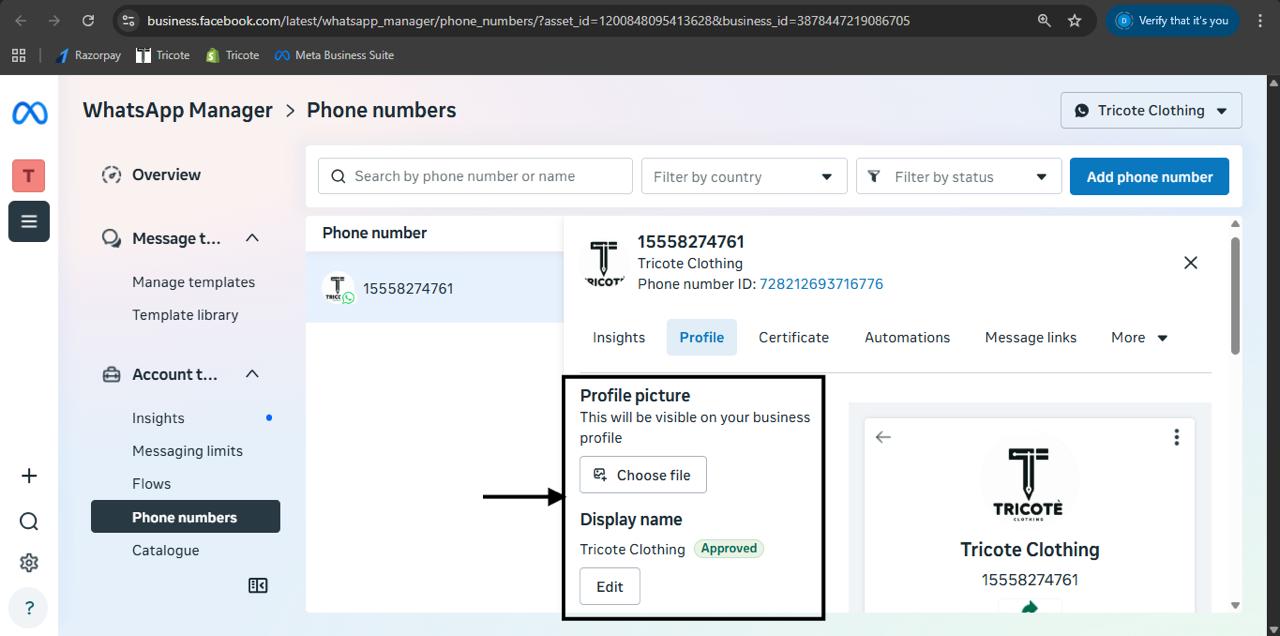
Under the Profile tab, you will see a Profile picture section at the top. It shows a note that says "This will be visible on your business profile." Click the Choose file button to upload a new profile picture from your device. Select the image you want to use as your WhatsApp Business profile picture.
Step 7: Edit Your Display Name
Below the profile picture section, you will see a Display name field showing your current business name along with an Approved badge. To change the display name, click the Edit button next to it and enter the new name you want to display on your WhatsApp Business profile.
Note: Display name changes are subject to Meta's review and approval process. The new name will only go live once it is approved by Meta.
Step 8: Save Your Changes
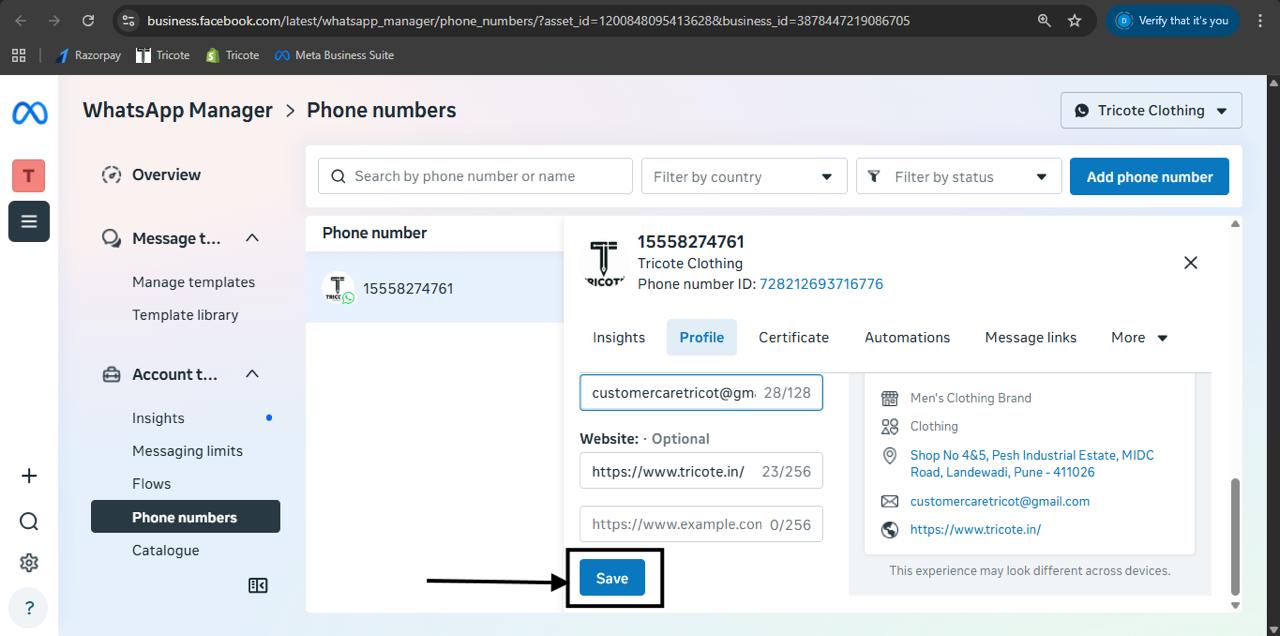
Once you have updated the profile picture, display name, and any other details, scroll down and click the Save button to apply all your changes.
You're All Set!
Your WhatsApp Business profile picture and display name have been successfully updated. The changes will reflect on your WhatsApp Business number once Meta processes and approves them. Customers will now see your updated profile whenever they interact with your business on WhatsApp.
Quick Tip: Make sure your profile picture is a clear, high-quality image that represents your brand, and your display name matches your registered business name to avoid any approval delays from Meta.