
How to Add an Abandoned Checkout Webhook in Razorpay (Magic Checkout)
This guide walks you through setting up the abandoned checkout webhook in Razorpay so that abandoned cart data is sent to your Updatrr app for WhatsApp follow-ups.
Step 1: Log in to Your Razorpay Dashboard
Go to dashboard.razorpay.com and log in to your account. Once you're on the home screen, click on the Payments tab in the top navigation bar.
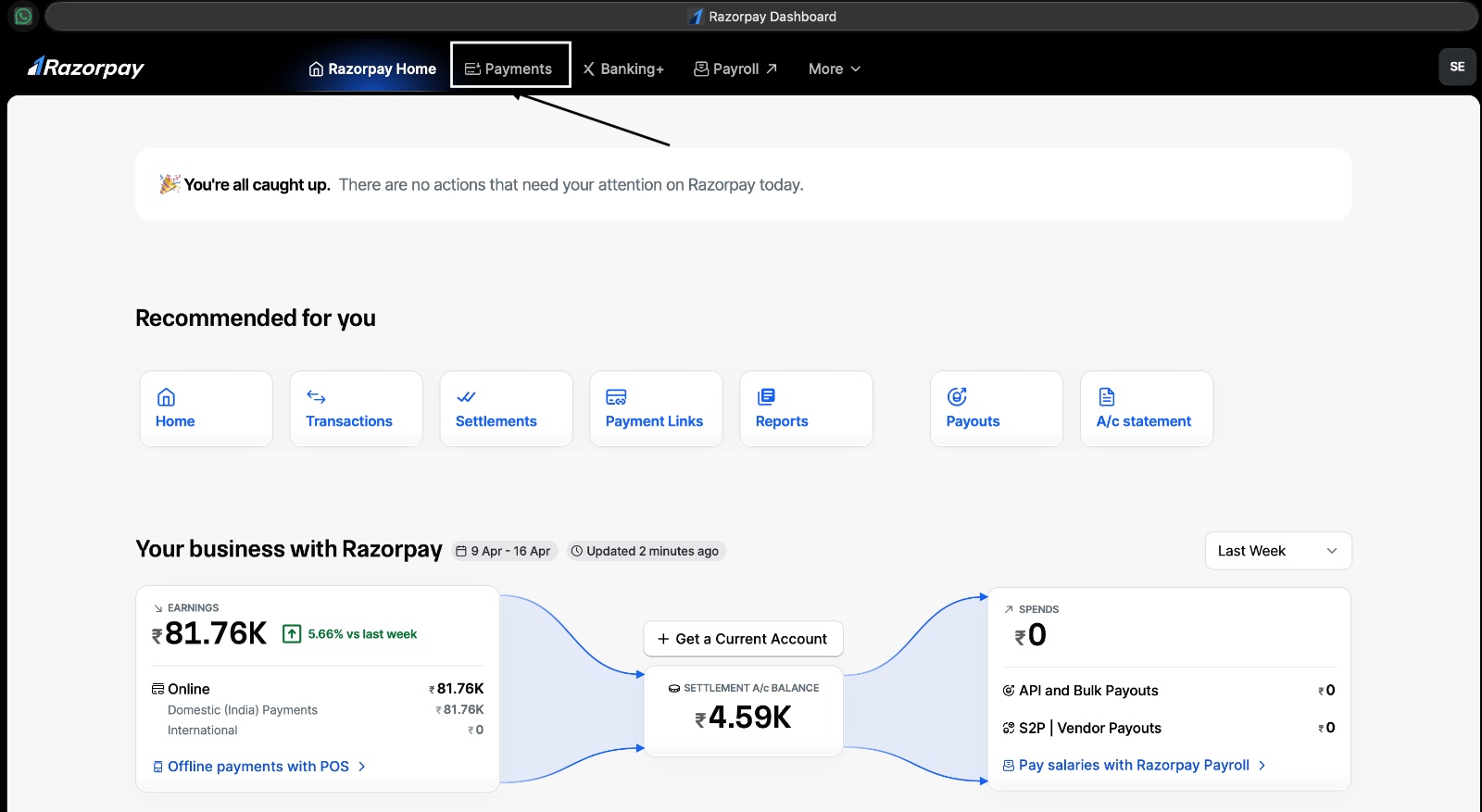
Step 2: Open Magic Checkout
In the left sidebar, look under the Payment Products section and click on Magic Checkout. This will expand the Magic Checkout menu.
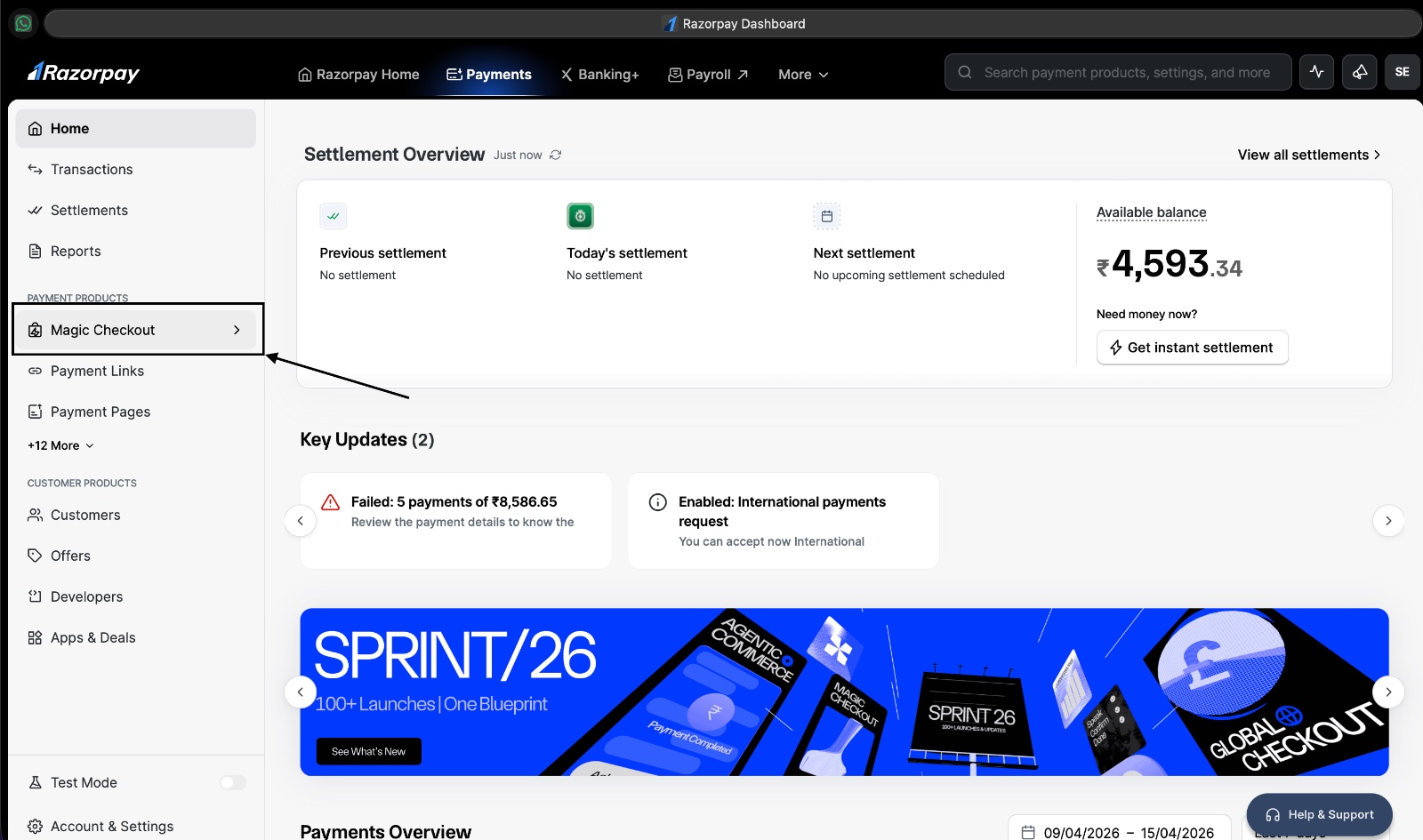
Step 3: Go to Setup & Settings
Inside the Magic Checkout sidebar menu, click on Setup & Settings to expand it further and reveal its submenu options.
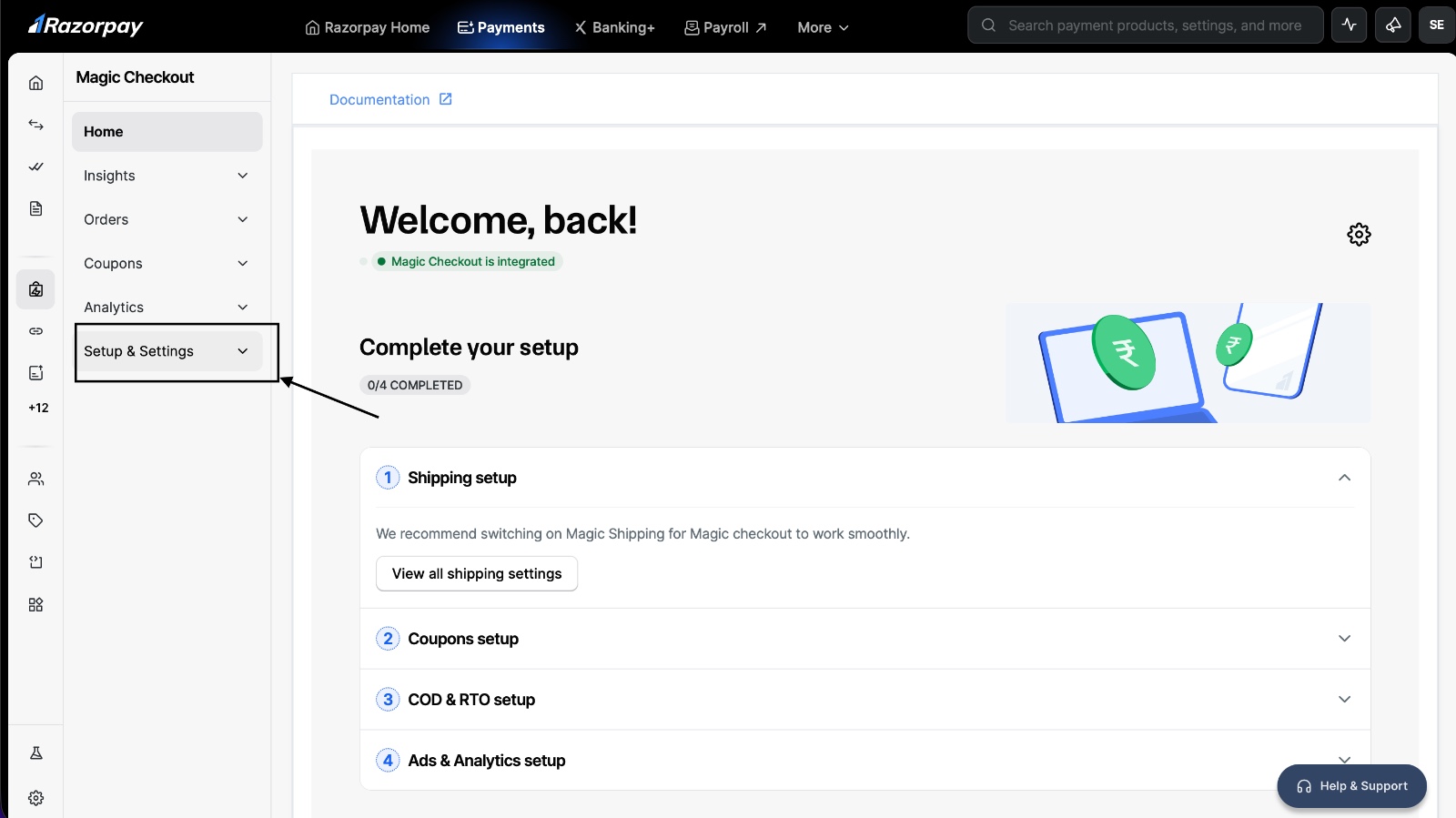
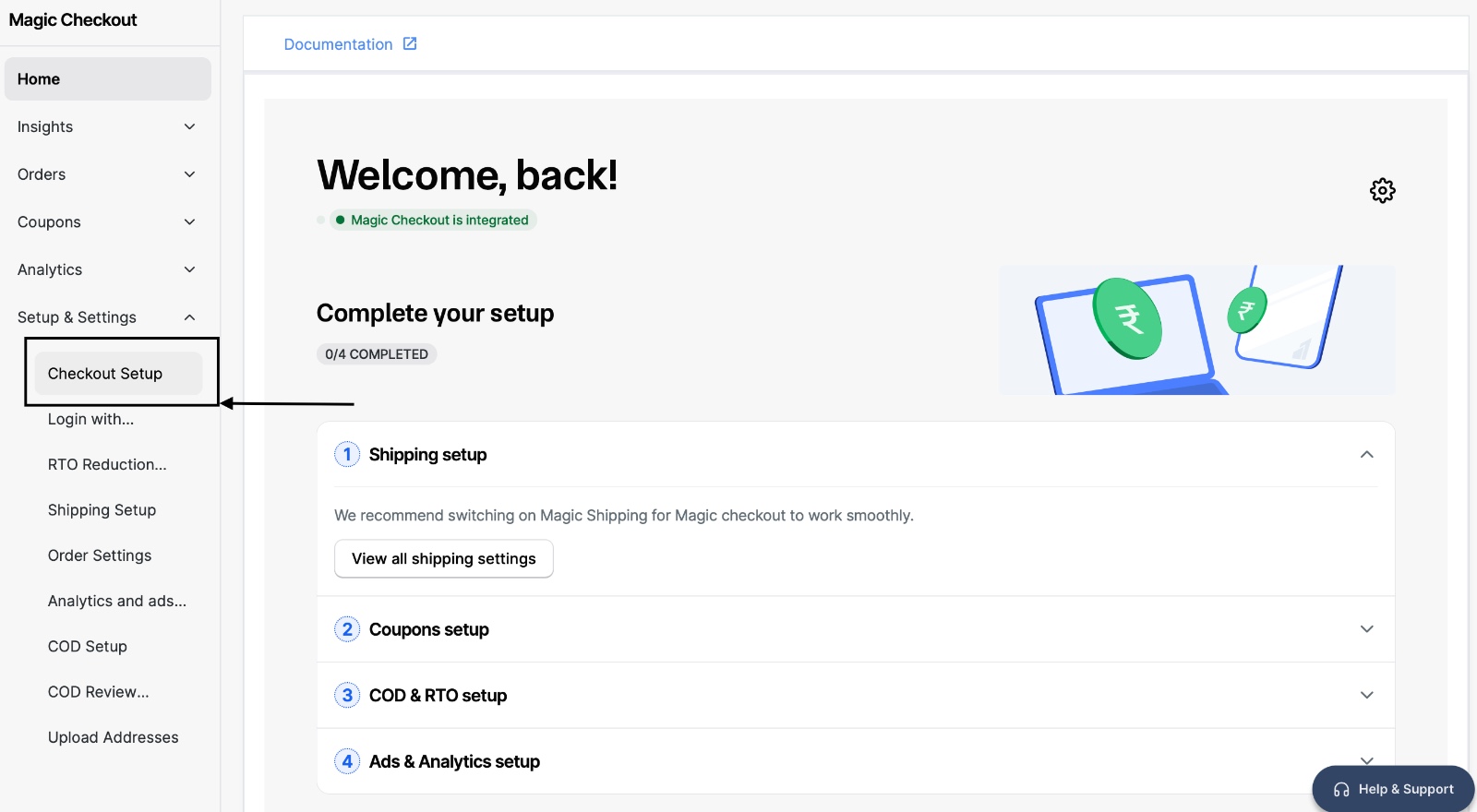
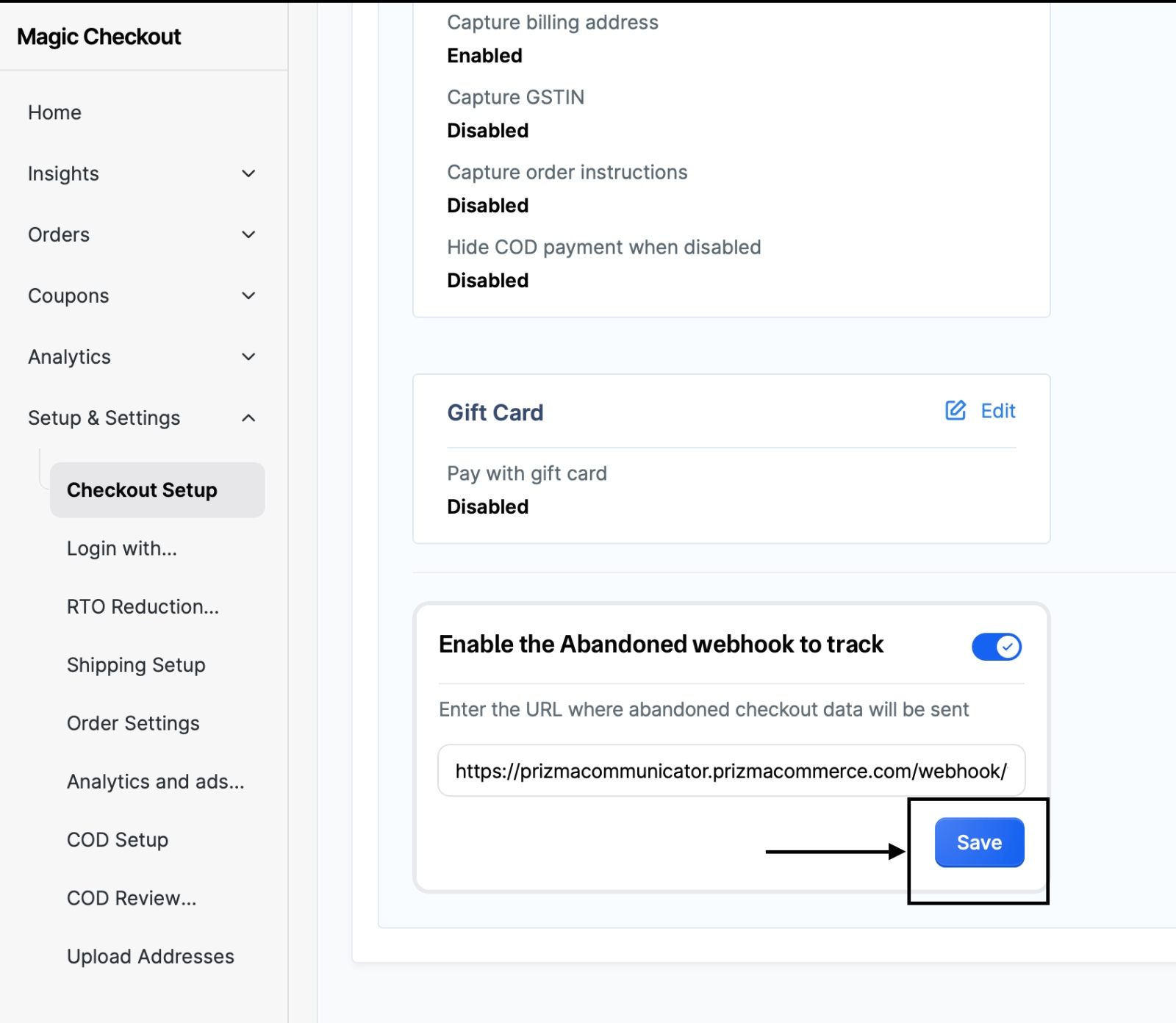
Step 4: Click on Checkout Setup
From the submenu that appears under Setup & Settings, click on Checkout Setup. This will open the checkout configuration page on the right side of the screen.
Step 5: Get Your API Key from the Updatrr App (Shopify)
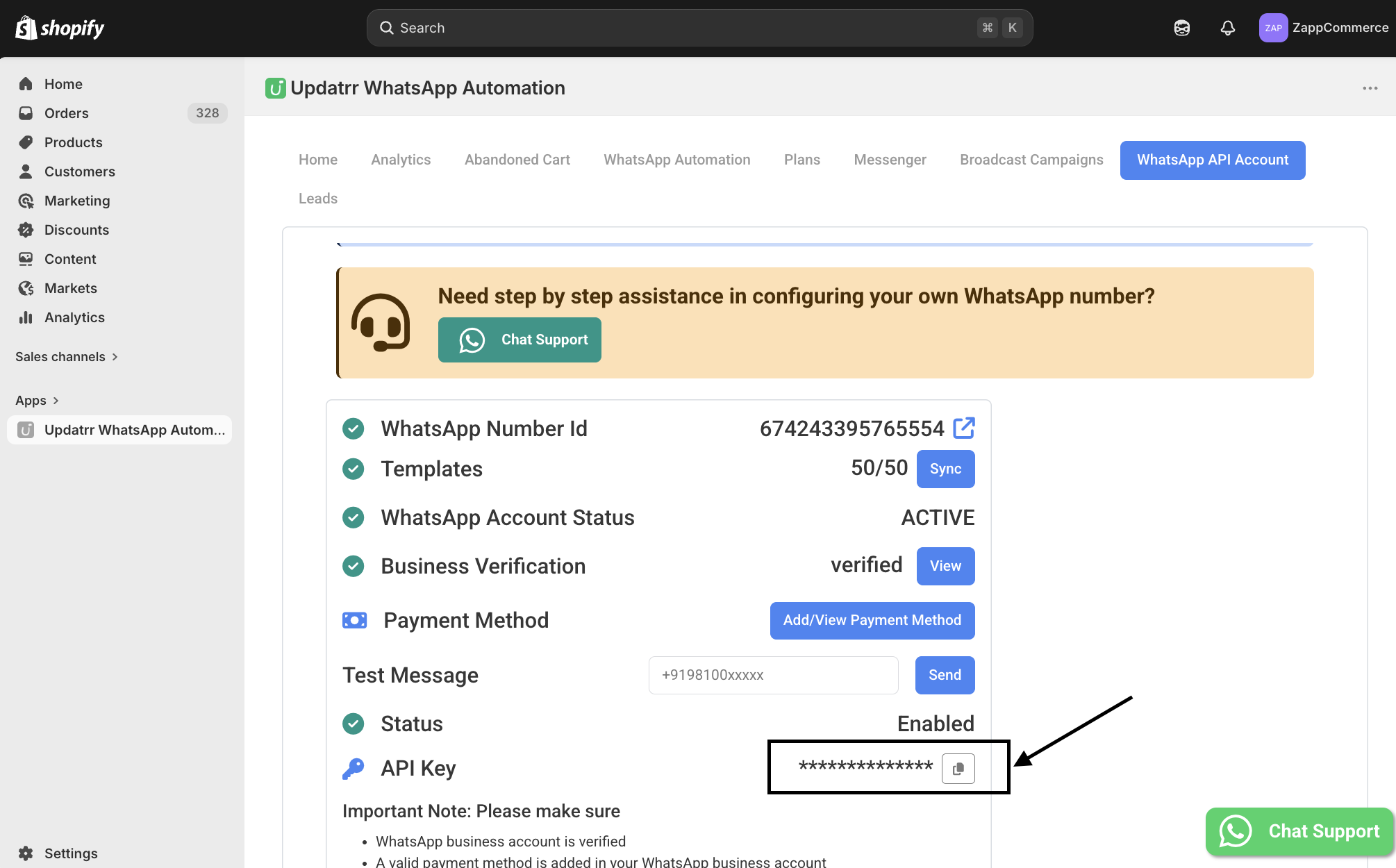
Before entering the webhook URL in Razorpay, you first need to retrieve your API key from Shopify:
- Go to Shopify Admin Panel
- Open the Updatrr App
- Navigate to the WhatsApp API Account tab
- Copy your unique API Key from there — you will need it in the next steps
Quick Tip: Before saving the webhook URL in Razorpay, double-check that you have copied the API key correctly from the Updatrr app — even a single missing character will cause the webhook to fail silently, meaning abandoned cart data will not be transmitted and you won't receive any error notification. Always verify that the toggle is turned ON and the URL follows the exact format
Step 6: Enable the Abandoned Webhook Toggle
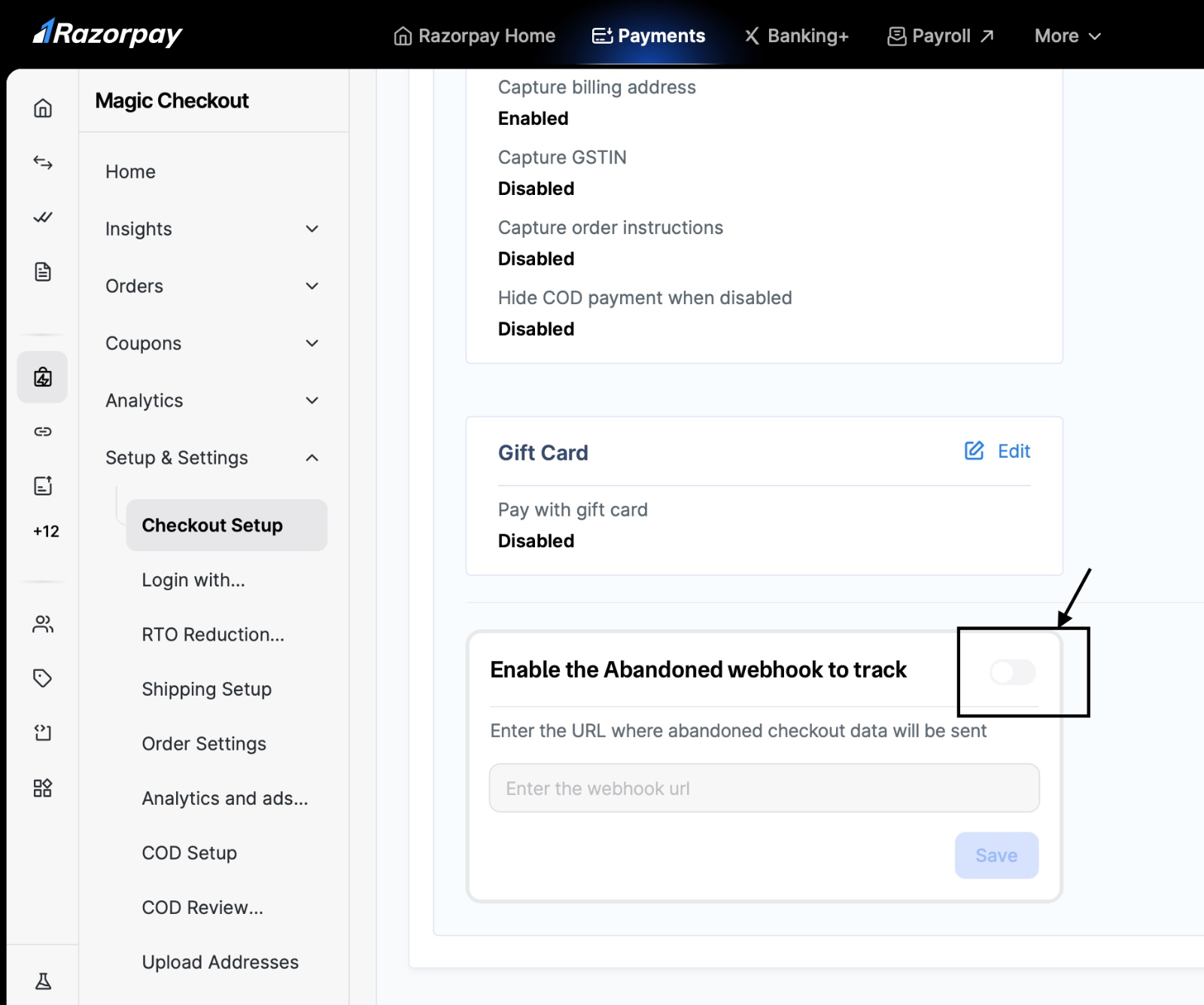
On the Checkout Setup page, scroll down to the bottom until you find the section labelled "Enable the Abandoned webhook to track". Click the toggle button to turn it ON. The toggle will turn blue once it is enabled.
Step 7: Enter the Webhook URL
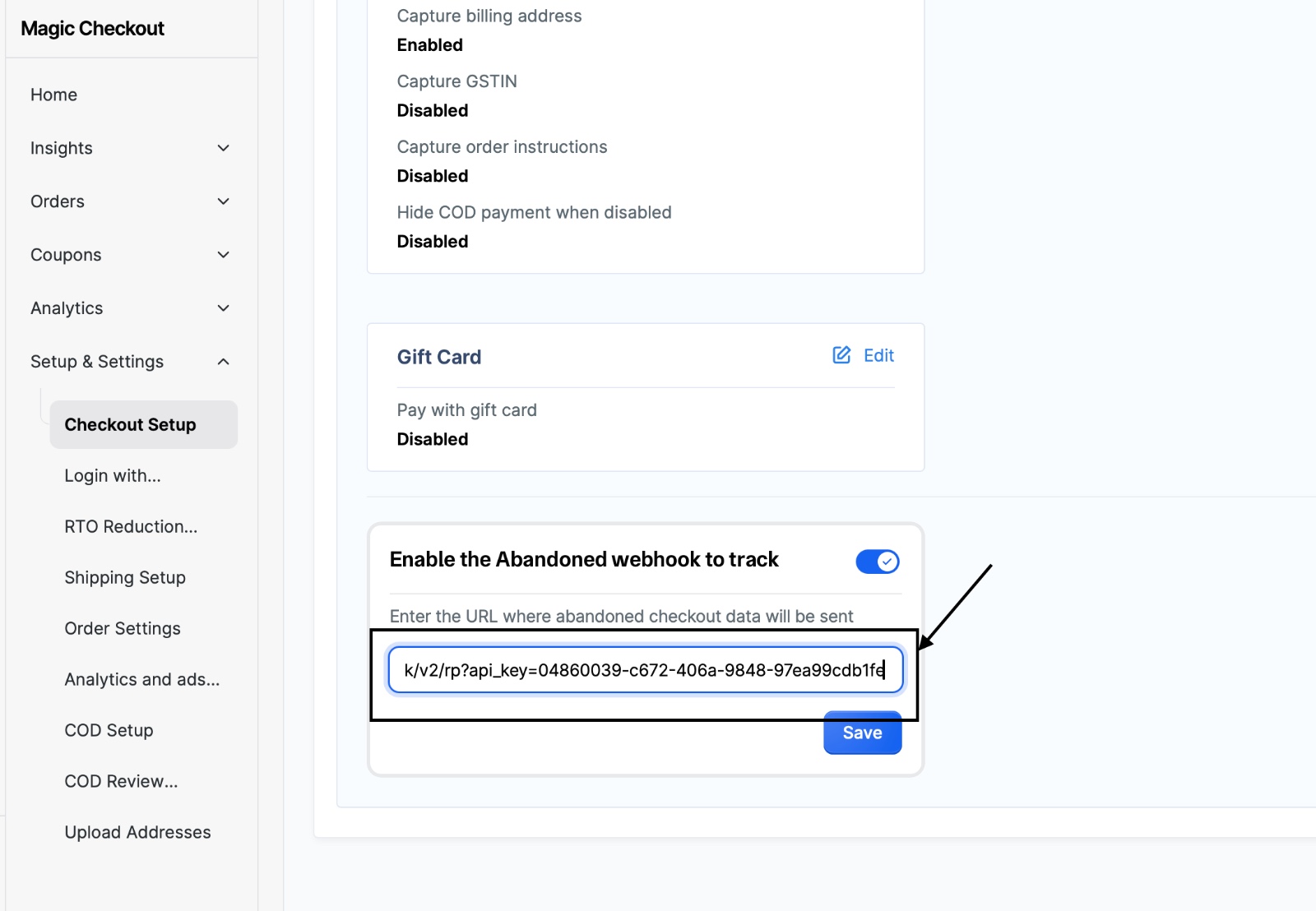
Once the toggle is enabled, a text field will appear asking you to enter the URL where the abandoned checkout data should be sent. Paste the following URL in that field:
- https://prizmacommunicator.prizmacommerce.com/webhook/v2/rp?api_key=<APIKEY>
- Important: Replace <APIKEY> in the URL with the actual API key you copied from the Updatrr app in Step 5. Do not include the angle brackets (<>).
- For example, if your API key is 04860039-c672-406a-9848-97ea99cdb1fe, the final URL should look like this:
- https://prizmacommunicator.prizmacommerce.com/webhook/v2/rp?api_key=04860039-c672-406a-9848-97ea99cdb1fe
Step 8: Save the Webhook
Once the correct URL is entered, click the Save button. The webhook is now active and configured.
You're All Set!
From this point on, whenever a customer abandons their checkout on your store, Razorpay Magic Checkout will automatically send that data to the Updatrr webhook URL, which will then trigger WhatsApp follow-up messages to recover those orders.